

Yes, there are loads of photo editing apps for your iPhone on the App Store, but you might not realise that your iPhone’s own Photos app has excellent editing tools built in.
Apple is to blame for not making the tools always very obvious, as the company seems determined to hide every scrap of interface it can. But tap any photo to open it in full screen and you can then tap the Edit button (the one with the sliders) to reveal a surprisingly powerful editing suite.

The Photos is a hidden gem and I think it’s an app every photographer with an iPhone should be using daily. Here are some of my favourite tools.
Pick a Style, any Style
iPhone shots tend to look great, but sometimes I want to change the mood. If you feel the same, tap Styles and choose one of Apple’s filters. But don’t stop there: tap the filter again and you get an X-Y grid to tune the current look.

Set key photos
I love how Live Photos give you a snippet of video on a long-press. But Apple doesn’t always pick the right still. Luckily, you can change it in the Live section of the edit screen – and trim the video too.
Make adjustments
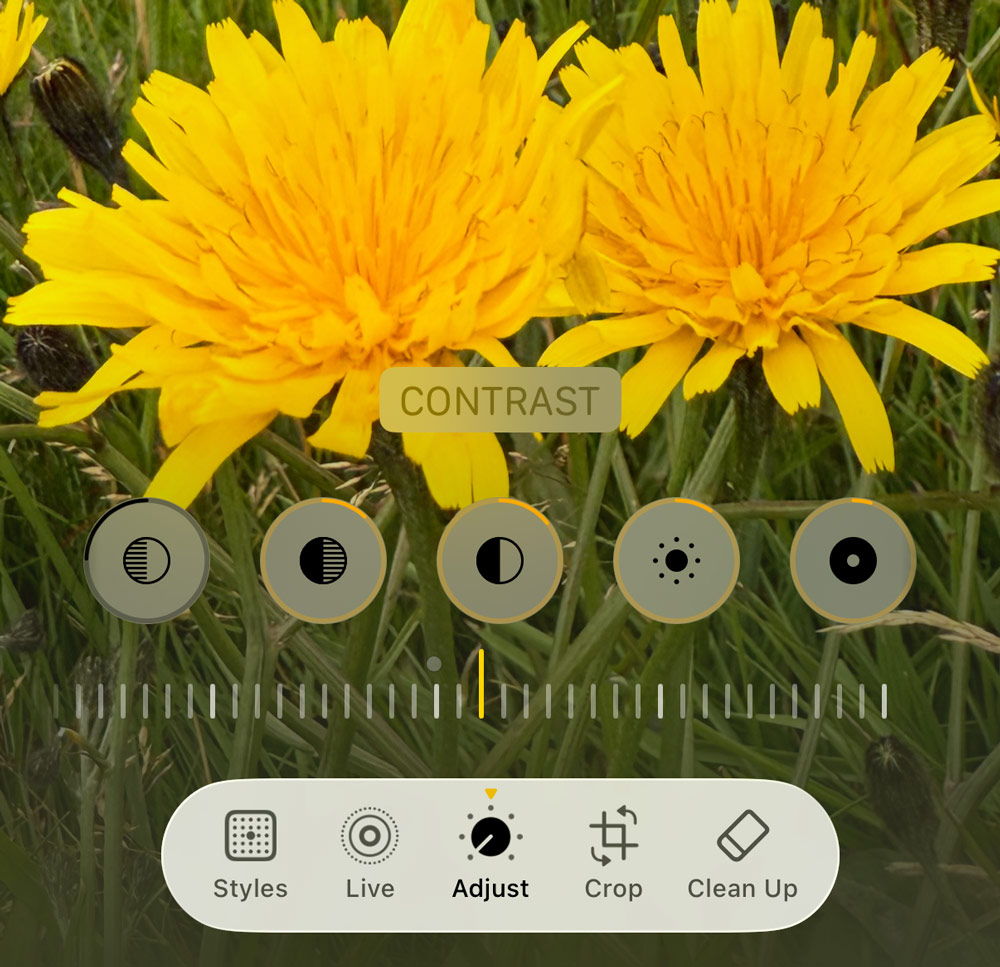
Tap Adjust, then Auto. Photos will instantly tweak all kinds of settings to make your photo shine. This is no ‘black box’ fix, though – scroll through the tools and you can see exactly what’s been changed and make further alterations.

Flip images
iPhone selfies are mirrored unless you turn off Mirror Front Camera in Settings > Camera. I always forget about that, but you can instantly flip a photo by using the top-left button in Crop. You can rotate shots here too – handy when a landscape photo insists on displaying in portrait, which happens to me more often than I care to admit.
Crop photos
Framing can make or break a photo. The Crop tool lets you adjust framing freely or snap settings to a specific aspect ratio. The latter’s a good bet when editing photos and subtly nudging subjects for printing, or when preparing pics for social media.

Use Clean Up
The Clean Up tool is Apple doing AI right, helping you to remove blemishes rather than add fakery. I find it works best zoomed in, so I can draw with precision over what I want gone. However, Clean Up will sometimes highlight suggested fixes, which can be removed with a tap.

With all these built-in editing tools, remember that Photos makes experimentation safe. You can undo a previous step; and saved edits are non-destructive, which means you can tap Revert in the edit view, or long-press a thumbnail in your library and choose Revert to Original to get your original picture back.
Want to go completely risk-free? Long-press a photo and select Duplicate before you start editing, so there is no risk of ‘damaging’ a picture through editing.
Further reading
- Why I think iPhone is a game changer for photography (and always has been)
- Night and low-light photography can be a pain – here’s why iPhones make it easy
- Five films you won’t believe were shot on iPhone
Follow AP on Facebook, Instagram, YouTube and TikTok.