



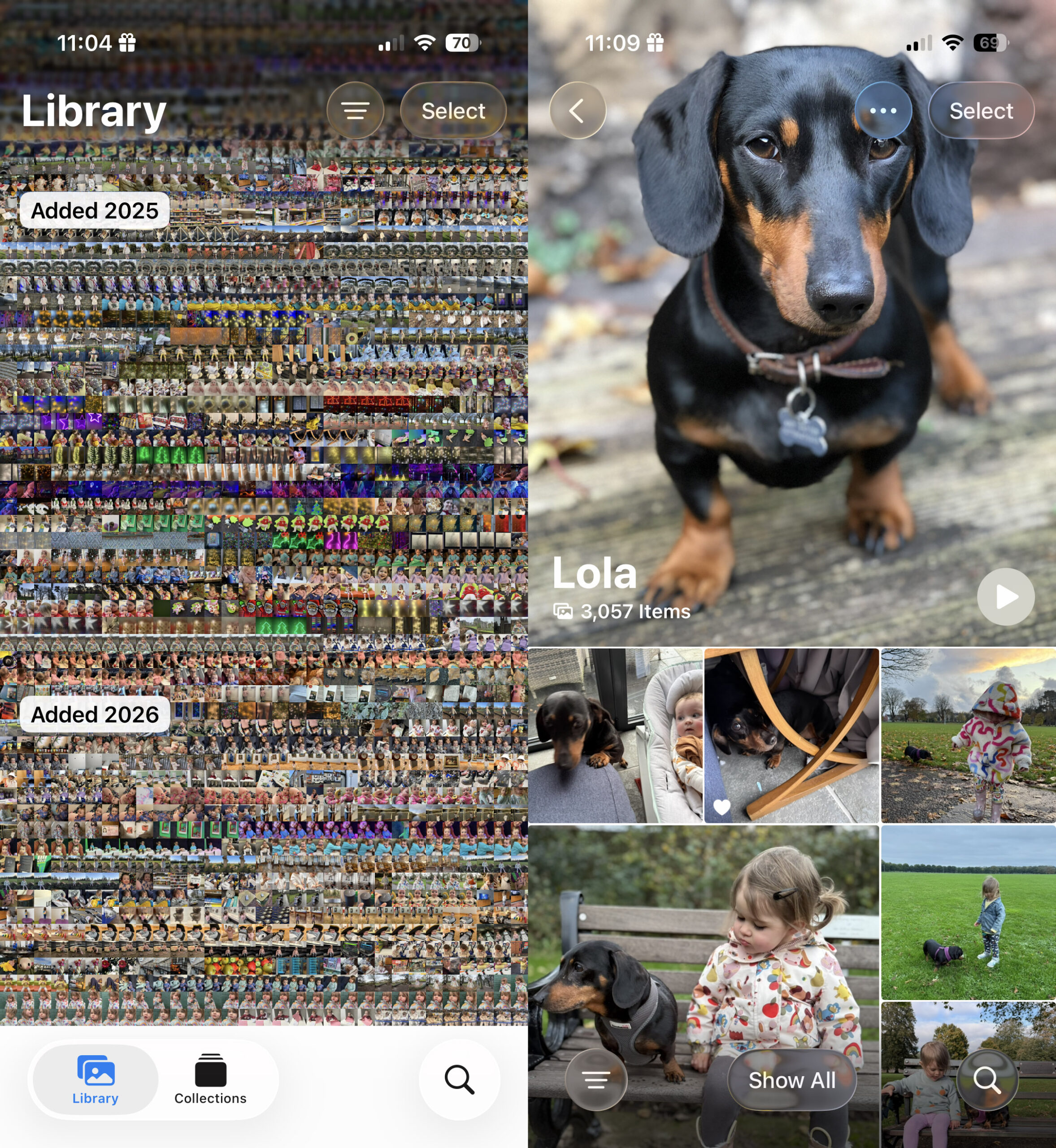
If you’re anything like me, your camera roll will be filled with what seems like an unfathomable amount of pictures. According to my Photos app on my iPhone 17 Pro, I apparently have 77,186 items. What? How is that even possible … oh that’s right, it’s full of babies, dogs, hamsters, random things I saw in the supermarket and god knows what else besides.
All of this photographic ephemera – whether precious memory or throwaway snapshot – is taking up space on my phone’s storage, or on the cloud which I’m paying a subscription for to have extra storage.
I could probably have a clearout of some of these photos, but until I find the spare time to do that (spoiler: never gonna happen), I can at least try my best to not fill up the space so quickly.
Luckily there is a way to keep file sizes down, while still maintaining image quality and without losing the ability to share your images. By doing so, you can potentially reduce the amount of cloud storage you need, or get yourself a phone with a lower capacity in the first place. In other words, you could save yourself some serious cash.
All you need to do is shoot in the “HEIF” format, otherwise known as High Efficiency Image File Format. You might sometimes see it referred to as “HEIC”, or see file extensions with .heic too.
Default settings
The default setting for many modern smartphones is to shoot in the universally adopted JPEG format, which we’ve all been happily using for years. But the files can be pretty hefty, and if you’re trigger happy when there’s a cute pet or infant around, that can be a problem.
Meanwhile, the HEIF format is much smaller – a comparable file can be up to 50% smaller than a JPEG, meaning you can take as many cat photos as you like, without taking up so much storage space. Lots of people have been a bit anxious about using this file format, because it’s not as widely used as JPEG – but I’m here to tell you to stop worrying.
HEIF has been around for over a decade now, and iPhones have been using them since 2017, with Android following suit from 2019. Most of the major flagships from all brands can shoot and open this format now. If you need to share your photo to social media sites such as Instagram, that’s no problem, your app can read HEIF files, and so can messaging platforms such as WhatsApp.
Potentially, you might run into a problem if you were to send your files directly to someone without a compatible device. But, generally, when you email a file from your phone it’ll magically convert to JPEG anyway. Devices that can’t handle HEIFs are becoming rarer too, and image conversion software is readily available if necessary. It’s simply not worth filling up your library with JPEGs just on the off chance that someone else won’t be able to read it – if they can’t, simply convert it for them.
How to shoot in HEIF on your iPhone
Lots of smartphones can shoot in HEIF, but to find it on your iPhone go to Settings > Camera > Formats and select “High Efficiency”, rather than “Most Compatible” and there you have it. For other smartphone models, you’ll usually find it somewhere within either the main settings or within the native camera app itself.
For example, with the Samsung Galaxy S25 Ultra, you’ll find it in Camera > Settings (gear icon), and then Advanced Picture Options. Other Androids will vary – and it’s not available on every device, but it’s becoming increasingly more common. It’s worth checking to see if you can do it.
Read more: