


DxO PhotoLab 9 review – does AI masking make this the perfect RAW processor?

DxO’s flagship photo editor is now up to version 9. Rod Lawton explains what’s new and how it all fits in.
Amateur Photographer verdict
DxO PhotoLab 9 offers industry-leading RAW processing and noise reduction. While the PhotoLibrary is quirky and the tools get technical, the AI masking and lens corrections are unmatched.
- Excellent lens corrections
- Superb DeepPRIME processing
- Powerful local adjustment tools
- Perpetual one-off licence
- Quite expensive
- Technical in places
- PhotoLibrary quirks
DxO PhotoLab 9 at a glance:
- $239.99/£219.99
- High-end raw processing
- DeepPRIME noise reduction
- Automatic lens corrections
- AI masking
- Mac and Windows
- 30-day trial version available
- www.dxo.com
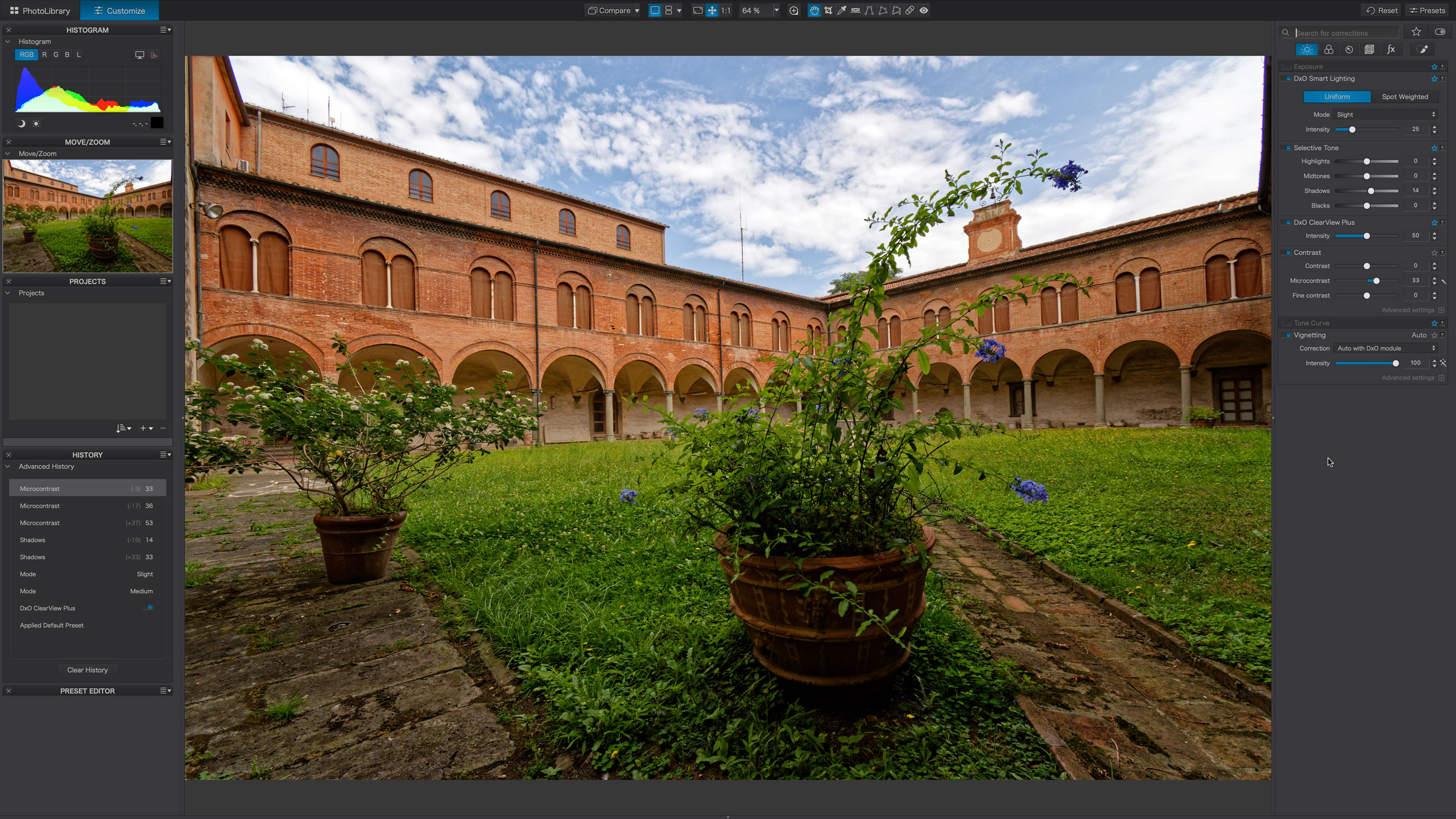
DxO PhotoLab 9 is the flagship program in DxO’s photo editing software line-up. It’s renowed for the quality of its raw image processing, its lab-developed camera/lens correction profiles and its DeepPRIME AI-driven noise reduction technology. It combines powerful photo enhancements with sophisticated local adjustment tools which now include AI subject and object selection. It does all this in a non-destructive workflow which allows for multiple versions of the same image and supports a wide range of preset effects. It also has basic but effective image browsing and searching tools.
There is a PhotoLab Essential version which is cheaper, but it lacks many of the Elite version’s key features, such as the DeepPRIME processing and its ClearView contrast adjustment and haze reduction.
So how does PhotoLab fit in with the rest of DxO’s software line-up? Perhaps its closest relative is DxO PureRAW, which takes the same lens corrections, raw processing and DeepPRIME processing and incorporates them into a simpler raw batch processing tool which can output enhanced and optimized JPEG images or, more usefully, part-processed raw DNG files for other software to use. With this, you get all the advantages and flexibility of raw files but with DxO’s raw processing and corrections pre-applied.
DxO also publishes ViewPoint, a tool for more advanced lens and perspective corrections which is especially useful for architecture and wide-angle photography. This works as a standalone program or as a plug-in for Lightroom/Photoshop. If it’s installed alongside PhotoLab, it’s integrated into the PhotoLab interface and offer specialized tools like tilt-shift miniature effects and volumetric distortion correction within PhotoLab.

And then there’s DxO FilmPack, a program specifically designed to authentically replicate the appearance of classic analog films and processing styles. Like ViewPoint, FilmPack works as a standalone application and as a plug-in, and also integrates with the PhotoLab interface.
Finally, there’s the DxO Nik Collection. It’s an outstanding collection of creative plug-ins for use with other photo editing programs or even as standalone applications. If it’s installed alongside PhotoLab, the Nik Collection plug-ins can be accessed directly from a button within the application, though they don’t integrate in the same way as ViewPoint or Filmpack.
That’s an introduction to DxO PhotoLab and the DxO software family, so let’s take a look at exactly what PhotoLab can do and the kind of photographers it’s aimed at.
DxO PhotoLab 9 – Lens corrections
All lenses exhibit some degree of distortion, chromatic aberration, colour fringing or corner shading (vignetting). Sometimes it’s not too bad and can be ignored or accepted, but usually it needs correcting.
Lens corrections have become especially important as lens makers have been moving towards a kind of hybrid optical/digital correction which allows for more advanced, better or cheaper lens designs but does depend on the right kind of camera/software support. Mirrorless cameras typically apply lens corrections to JPEGs in-camera. If you shoot raw files, some brands will embed correction profiles in the files for the software to use, but some won’t. Even if the maker. includes a correction profile it might be quite basic and easily improved on.

If you use Adobe Lightroom, Capture One, Affinity or other photo editors that can process raw files, these will typically match your photos up with correction profiles automatically, or use the maker’s own embedded profile where available – but DxO goes further,
First, DxO takes the approach that cameras and lenses need to be corrected as pairs, so there are lots of permutations. In fact, DxO has now developed more than 100,000 correction profiles and actively adds new cameras and lenses as they appear.
These correction profiles are developed in DxO’s own testing labs, and they don’t just correct distortion, chromatic aberration and vignetting – they also correct global lens softness and also edge softness, lens by lens. Lots of lenses grow visibly softer towards the edges, and while this is an optical effect you can’t reverse, DxO’s lens profiles apply a progressive sharpening effect that disguises it very effectively.

All this sounds very complicated, but these lens corrections are applied automatically. PhotoLab can identify the camera and lens used from the image file’s EXIF (shooting) information and then apply a matching correction profile automatically in an instant without you having to do a thing. If it doesn’t have the required profile straight away, it will prompt you to download it. These are small files and it only takes a few moments. It’s rare to find a camera and lens combination that DxO doesn’t support.
There’s one more feature of DxO’s lens corrections worth highlighting. When software profiles are used to correct barrel distortion in wide-angle lenses, they do this by ‘pushing’ the edges and corners of the image outwards. Normally this extra image area is lost, but DxO’s crop tool can be set to expand to retain this extra image area – it’s like having your wide-angle lenses made even wider! That’s not really the case, of course, it’s just that you’re keeping the outer edges of the corrected image that other programs would crop off.
Your worst gear benefits the most!

If you have one of the latest camera models and invest in the best lenses, you might not see a whole lot of improvement from processing your raw files in DxO PhotoLab. However, if you have older or cheaper gear it’s a different story, because this is where PhotoLab and DxO’s DeepPRIME processing can make the most difference. Here’s a picture taken with an old Canon EOS 400D being used with a Tamron 28-300mm superzoom – both distinctly average performers. But with PhotoLab’s correction modules and DeepPRIME processing, its raw files are transformed. PhotoLab can make your old images look better than they ever did at the time.
DxO PhotoLab 9 – DeepPRIME noise reduction
DxO’s DeepPRIME AI noise reduction for raw files was revolutionary when it was first introduced, eliminating noise yet preserving or even enhancing high-ISO detail in a way that was positively uncanny. Other programs have caught up, though, and AI noise reduction is now common. Adobe Lightroom now incorporates this option seamlessly into its workflow, where previously it needed to create a new, ‘Ehnanced’ DNG file.
DxO hasn’t stood still, though. It’s been continually developing its DeepPRIME processing generation by generation, and the options now include DeepPRIME XD2s (XD – eXtra Detail) for the ‘most challenging’ raw files and DeepPRIME XD3 X-Trans for the unique colour filter layout in Fujifilm X-Trans cameras.

PhotoLab also offers DeepPRIME 3 for ‘ultimate quality’ with regular bayer (non-X-Trans) sensors, and this is where it gets a little confusing – which is best, XD2s or XD3? DxO doesn’t make this very clear and, to be honest, it’s hard to see much difference in the results.
On top of this, DeepPRIME processing is not instantaneous. It can now use dedicated GPU processing on computers where this is available, but it still takes a few seconds. If your computer is fast enough you can see a whole-screen preview, but otherwise you need to use a smaller floating preview window. Every generation is faster, though (including computers), so hopefully we’ll get to a point where the processing is instantaneous and seamless.
It’s worth it, though. DxO’s DeepPRIME processing still produces the best combination of noise reduction and detail enhancement of any AI noise reduction processs I’ve tried yet. What it can do with noisy high-ISO images is just astonishing.
Just how good is DxO DeepPRIME?
This is a raw image taken at ISO 12,800 on a Sony A7R II. That’s a big ask of a camera of that age and resolution at such a high setting, and the uncorrected image on the left shows displays a lot of noise and lacks detail. In fairness, PhotoLab shows a totally uncorrected ‘before’ image, so it’s a slightly exaggerated comparison. Nevertheless, the corrected image on the right shows no noise at all and remarkable fine detail that’s just not apparent in the original. DxO’s DeepPRIME result shows no horrible smoothing effects, no obvious AI artefacts and even restores colour and contrast. It has its limits, as here it doesn’t quite know what to do with the defocused bicycle spokes in the background, but it’s pretty exceptional nonetheless – and this is at 200% magnification.

DxO PhotoLab 9 – Local adjustments
PhotoLab isn’t just a tool for lens corrections and noise reduction. It’s also a fully-fledged photo editor complete with a powerful set of local adjustment tools. It doesn’t offer the layers of Photoshop or Canva Affinity, but for anyone working on single photographs rather than elaborate composites, it has everything you need.
The local adjustment tools include some DxO specialities. Using Control Points, for example, you can click on a spot in a photo to create a circular adjustment mask that targets just those specific tones. It’s an unusual way to select areas of a photo but once you’re used to it, it’s very fast, very selective and very effective.
PhotoLab also has regular gradient and brush masking tools. These are useful for broad, subtle adjustments – the Brush tools can be used with or without auto-masking – and the gradient mask tool is very effective for controlling bright skies in outdoor shots. If you’re working with raw files, it can recover a lot of highlight detail in bright skies, for example.
PhotoLab has a further, unique adjustment called a Control Line. The name is not that helpful, to be honest, as it doesn’t have anything to do with lines. Instead, you can think of this as a linear gradient tool with an eyedropper. The eyedropper is used to select the range of tones for masking, so you could use this in a landscape shot, for example, where the sky is bright but there are trees and buildings against the sky that you want to protect from adjustment.

On top of that, PhotoLab offers Luminosity Mask and Hue Mask options too, but the main news with PhotoLab 9 is the inclusion of new AI masking tools. We’ve seen these before in programs like Lightroom or ON1 Photo RAW, so their inclusion in PhotoLab 9 feels like it’s brought DxO’s software right up to date.
The AI masks come in three main modes – a selection mode, an area mode and a named object type mode. With the selection mode you simply move the mouse cursor over the photo and it will highlight recognised objects as the pointer passes over them. You just click on an object to create a mask. The area mode works a little differently. Here, you drag a rectangular marquee around the object you want to select and the AI will identify and mask the object within that marquee. Sometimes selection mode works best, sometimes the area mode will give a better result.
With the predefined mask option, you use a pop-up menu to choose an object type to look for, such as skies, main subjects, backgrounds, vehicles, people, hair or clothes, and the software will then use AI to look for corresponding objects and create a mask.
It all works really well. It’s the first time AI masking has appeared in PhotoLab, but DxO has really hit the ground running. The selection and area modes have ‘+’ and ‘-‘ options for adding to or removing areas from the mask, and PhotoLab’s masking tools now support ‘submasks’ so that you can combine different masks for even more precise adjustments. This does start to get a little complicated, but it’s not essential to getting great results – it’s just another level of refinement just in case you need it.
Control Lines and Control Points

AI masking is one of the latest features in DxO PhotoLab 9, but it’s not the only way to apply local adjustments. AI masks can be fast and effective, but they can also leave gaps and edge artefacts, and sometimes regular, non-AI masking works better. Here, I’ve used a Control Line to darken the blue sky without affecting the wooden buildings, and I’m setting up a Control Point adjustment to emphasise the texture of the flagstone pavement in the foreground. Control Points have been around for a long time in DxO software, and you’ll also find them throughout the DxO Nik Collection too.
DxO PhotoLab 9 – Non-destructive editing
All of this happens within PhotoLab’s non-destructive editing workflow, and it’s important to understand how this works. PhotoLab does not create new versions of your photos. These remain unaltered on your computer. When you make adjustments it simply changes the appearance of your photos within PhotoLab to reflect these changes.
These changes are not permanent. In fact, they are stored as processing metadata (instructions) within files stored alongside your images with the same filename but a .dop extension. If you’re ever browsing your images in Windows Explorer or the macOS Finder and see these .dop files, don’t delete them or move them. If you do, your original image will still be safe, but any adjustments you’ve made in PhotoLab will be lost.

In fact, if you want to make permanent, edited versions of your photos you must use PhotoLab’s Export option to save them as new JPEG or TIFF files. It’s the same with any non-destructive photo editor, including Lightroom, for example.
This non-destructive workflow does bring major advantages. It means you can revisit and re-do any adjustments you’ve made to photos, at any time in the future. It also means you can create ‘virtual copies’ to try out different processing or editing styles. These virtual copies use the same original image file, so you can create as many as you like without duplicating actual photos.
DxO PhotoLab 9- PhotoLibrary window
PhotoLab doesn’t stop at photo editing. It also has its own integral PhotoLibrary view for browsing and searching your photos. Be aware, though, that it’s not exactly a Lightroom alternative. DxO takes a more basic approach to photo organizing that may nevertheless suit the way you work – there’s no ‘import’ process and images are shown ‘live’ in folders – but there are some quirks and limitations too.
The PhotoLibrary view is very effective for anyone who uses a folder system for their organizational structure. Folders have limitatitons for organization, though, because images can of course only be in one folder at a time. If you want to organize images by theme, you’ll often be in a situation where photos match more than one theme. For example, if you come back with a set of images from a ski holiday, you might what them to be in a ‘travel’ album, a ‘winter’ album, a ‘sports’ album and perhaps more.
This is why many photo organizers offer ‘albums’, or ‘Collections’ as they are called in Lightroom. A photo can only be in one folder at a time, but it can be in as many different albums as you like.

PhotoLab’s PhotoLibrary window can do this too – it calls these ‘projects’ but the principle is the same. You can even nest projects in a hierarchy within ‘project groups’. The only thing is, PhotoLab’s projects are hidden away in a cramped little panel at the bottom of the left sidebar. They’re not very prominent and not very accessible.
PhotoLab has a search feature which is very clever but has quirks of its own. It searches as you type, offering suggestions from your photos’ filenames, keywords and EXIF (shooting) data. It’s fast and really rather innovative, but you don’t have any control over where it searches. Basically, any folder you’ve browsed becomes part of the PhotoLibrary index, even those you might prefer to exclude. On top of that, if you search for a particularly common item, such as a specific ISO setting, PhotoLab will display some of them but then a message saying ’Too many images to be displayed. Please add some more search criteria!’, which isn’t especially helpful.
PhotoLab’s PhotoLibrary feature is definitely worth having, but its design and behaviour feel somewhat unfinished. It’s useful on a basic level, but it’s no Lightroom beater.
PhotoLab presets

You don’t necessarily need to dive deep into PhotoLab’s manual adjustments to get instant image ‘looks’ because it comes with a range of presets accessed by a button in the top right corner. This displays a pop-up panel of presets, all previewed using the image you’re working on and arranged in categories. There aren’t a huge number, but it’s enough. to get you started – especially since you can create and save your own based on your own edis and adjustments. If you have DxO FilmPack installed too, this panel will display some of its ‘designer’ presets too. If it’s preset image effects you’re after, though, you’re really better off with the DxO Nik Collection.
How does DxO FilmPack fit in?

DxO FilmPack is a separate product and you don’t need it to use DxO PhotoLab. However, if you do install FilmPack it becomes integrated with the PhotoLab interface in a way that gives you all the retro analogue effects of FilmPack but in PhotoLab’s non-destructive workflow. For this shot of a Bristol 4-ton truck from the 1920s I’ve used the FilmPack Time machine feature to select an appropriate image style from the period and added a vignette blur to subdue the background – these options are not available in PhotoLab without FilmPack. It’s a purely optional add-on and it does add to the expense, but it does take PhotoLab in a whole new direction for those who are interested in old-school photography.
DxO PhotoLab 9.3 – Verdict
PhotoLab 9 is an excellent tool for anyone who wants to get the very best image quality from their raw files. Many programs offer automatic lens corrections but DxO’s go further with tailored global and edge softness corrections as well as the usual distortion, chromatic aberration and vignetting correction. The basic raw processing is already among the best, but DxO’s DeepPRIME processing works a special kind of magic on high-ISO shots which I think has yet to be surpassed.
It’s also a very accomplished photo editor, with powerful and precise image enhancement tools and a range of masking tools which now includes very effective AI masking options. PhotoLab can’t do Photoshop-style layered montages, but it can do everything else, and to a very high standard.
But while it carries out lens corrections and basic image optimisation automatically, it’s not exactly a program for beginners. There are a lot of quite technical adjustments that need some experience to use properly. This is a program for more experienced photo editors willing to put some time into their work.
And while the PhotoLibrary window is effective enough at helping you browse your photos, its quirky approach to searches and lacklustre implementation of projects is disappointing. PhotoLab is a great program as long as you’re not expecting it to organise your images like Lightroom.

Follow AP on Facebook, Instagram, YouTube and TikTok.



Rod Lawton