

For an on-the-go photo editing solution, you can’t beat the best photo editing apps. Boasting power and flexibility to rival desktop software, with an intuitive interface designed for a smartphone’s touchscreen, a good editing app can be the ideal way to give an image a quick polish before sharing – or for getting more granular and detailed with your editing. And the best part is that a lot of them are completely free, or at least offer a free tier.
My top pick, Snapseed, is a free app that’s been available for years, and is somewhat legendary among photographers for the level of flexibility and control it offers – so I’d definitely recommend starting there. However, if Snapseed doesn’t feel like quite the right fit for you, I’ve included plenty more options for iOS and Android, including the latest options from Adobe in its Creative Cloud suite. These can be a good choice if you’re already subscribed to the software package, allowing you to seamlessly move your edits from phone to computer and back.
At the bottom of this page, I’ve also added a few extra apps that aren’t photo editing apps per se, but I think are worth photographers knowing about. Also, don’t forget to check out our detailed look at how a smartphone can help your photography, explaining everything you need to know about smartphone shooting.
Best photo editing apps for your smartphone: quick list
If you need to get right to the action, here is a quick rundown of our picks of the best editing apps on the market right now, along with links to download or buy them.
- Best free app for iOS and Android: Snapseed – Google Play Store / Apple App Store
- Best free Adobe editing app: Photoshop Express – Try now
- Best for presets: VSCO – Try now
- Best for enthusiast photographers: Photoshop Lightroom – Try now
- Best for iPhones: Pixelmator – Apple App Store
- Best for creative designs and styles: PicsArt – Google Play Store / Apple App Store
- Best for backing up your photos: Google Photos – Google Play / Apple App Store
- Best for the vintage film look: 1998 Cam – Google Play / Apple Store
- Best for colouring in black and white photos: Colorize – Google Play / Apple App Store
Why you can trust Amateur Photographer
We spend many hours testing every product we recommend, in detail, in a variety of situations and shooting scenarios, and only use experts for our reviews, so you can be sure that you’re getting the best products. Find out more about our expert writers.
Read on to learn more about each of these apps, and why I rate them as the best photo-editing apps you can download for your phone…
Best photo editing apps for your smartphone
Here are the top apps I’d recommend you download for photo editing, with options for iOS and Android, as well as highlights and reasons why you’ll want the software, and what it’s good for.
BEST OVERALL
Best editing app overall for Android and iOS: Snapseed

Amateur Photographer verdict
There isn’t really a better free editing app out there. Offering a huge suite of features and functions, with no download cost and no ads, Snapseed is a deservedly well-loved wonder.
- Free and ad-free
- Feature-packed, advanced presets
- Precise adjustments with Raw editing
- Photos are saved next to originals
- Can be too complicated for absolute beginners
At a glance:
| Price | Free |
| Availability | iOS / Android |
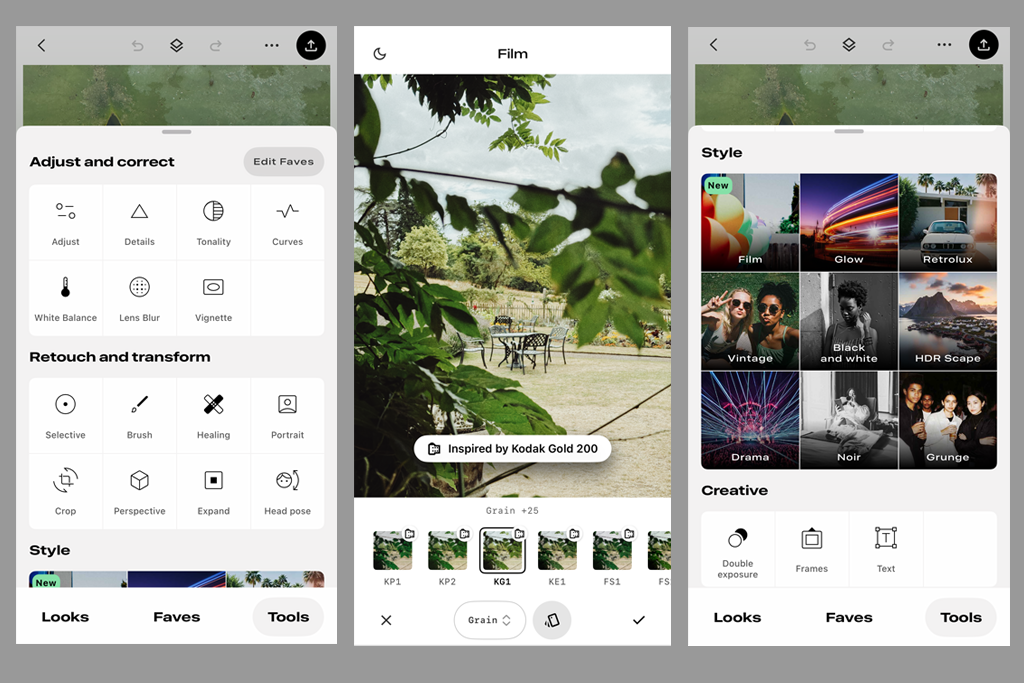
Snapseed (now owned by Google) is a one-stop shop for editing your images, an app that really does have it all. Available for both Android and iOS, Snapseed offers tools ranging from basic exposure/colour adjustments to more advanced HDR and Mono conversion features. The Head Pose option offers a Liquify-style solution to change the direction of gazes in your portraits, while the Selective options will allow for precise adjustments to both JPEG and RAW files.
Perspectives can be altered, and distractions can be quickly banished with the Healing tool option. For those feeling more creative, Double Exposures can be created in seconds, and vignettes and borders can be accessed to add the final touches to your images.
Last year, Google revamped the whole iOS version with a new interface, adding a customisable Faves tab as well as dozens of pro tools and beautiful vintage film effects. There’s an update in the pipeline for Android users too, but for now, the new Film filters and Faves tab are iOS only. More recently, an integrated camera option was added, allowing you to capture photos inside the app and use film filters or saved looks and adjust settings
Edited photos are saved in the gallery next to the original images, instead of a new folder. This can make locating your images a little complicated if you are used to the older version. Photos can be exported as new files, or you can overwrite your original photos to save space on your smartphone. I think you’ll struggle to find a better free photo app, full stop.
Read our guide to editing photos in Snapseed, or have a look at how to edit black and white photos in Snapseed.
BEST FREE ADOBE
Best free Adobe photo-editing app: Photoshop Express

Amateur Photographer verdict
As is inevitable with Adobe, you need a subscription to get the most out of it. However, Photoshop Express is an inarguably superb mobile image editor.
- Good all-rounder
- Lots of features
- Based on desktop software
- Works with other Adobe apps
- Premium features require subscription
At a glance:
| Price: | Free to download (some features require Creative Cloud subscription) |
| Availability: | iOS / Android |
- Free to download from www.adobe.com, but premium features require a Creative Cloud Subscription
- Available for both Android and iOS
With “Photoshop” in its name, it comes as no surprise that this photo editor has it all. Features include layer editing, core exposure and colour adjustments as well as the Heal tool to remove blemishes and distractions. If you want to ramp up the editing, then Photoshop Express has you covered with advanced technology such as Auto Object Selection, Face Contouring, and AI image generation.
That said, I liked all the advanced tech, but there are also more fun features too, with an emphasis on creating tools for social media use. From text and graphics to easy-to-use collage tools, so you can merge multiple images together. There are also hundreds of effects and themes to choose from if you are looking for an express edit. It’s also worth noting that most of the good Photoshop features are available completely free – no subscription required (though you do need an Adobe account). Paying customers get access to the AI image generation features – and you may well not be too fussed about those.
One further set of noteworthy features is Quick Actions, where complex jobs can be completed in one click. Jobs such as adding Denoise to a grainy image, smoothing out skin or even adding digital make-up to your subject. Almost all of Photoshop’s power, compressed into a smartphone app – amazing!
BEST FOR PRESETS
Best for presets: VSCO

Amateur Photographer verdict
It’s a bit of a head-scratcher when you first boot it up, but once you get used to VSCO’s interface, it’s a highly capable app for sprucing up your photos with filmic effects.
- Large array of Film Simulations
- Excellent infrared modes
- Standard suite of editing tools
- Requires subscription to really be worth it
- Interface takes some getting used to
At a glance:
| Price: | Free to download basic version; Plus / Pro versions $2.50 / $5 per month |
| Availability: | iOS / Android |
VSCO has been around for a while now, but has somewhat come into its own more recently, quietly amassing one of the best Film Simulation libraries outside of Fujifilm. If you want to drench your images in Kodachrome cool or give them an ethereal monochrome infrared makeover, VSCO is one of the best ways to do it.
It’s favoured by AP’s deputy editor Geoff Harris, who described it as ‘one of the best photo-editing apps you’ve never heard of.’ While Geoff found the initial setup to be a little bit like hard work — with menus overly relying on skeuomorphic symbols rather than just explaining what’s what — once he got used to VSCO’s layout, he found he had a highly capable editor on his hands. The combination of well-made filters with extensive editing tools means you get the best of both worlds, with the ability to one-tap your images into retro style or spend extended time tweaking them just to your liking.
If you’re a frequent traveller who wants to give your shots a little more pop, VSCO is a brilliant choice, available for both Android and iOS, as well as on your computer if you want to use it through your browser. There is a caveat to that though — the free version is very basic indeed, acting basically as a trailer for the Plus and Pro versions, which come at a subscription cost. For what you get, we’d judge VSCO to be worth the outlay, but this is worth bearing in mind.
Read more: VSCO who? It’s one of the best photo-editing apps you’ve never heard of
BEST FOR PHOTOGRAPHERS
Best for Raw image editing: Photoshop Lightroom

Amateur Photographer verdict
The quick convenience of Lightroom pressed into an app. It’s easy to use, but also puts plenty of editing power at your fingertips.
- Easy to use
- Quick presets
- Raw and JPEG editing
- Better interface than PS Express
- Premium features require subscription
At a glance:
| Price | Free to download (some features require Creative Cloud subscription) |
| Availability | iOS / Android |
Photographers know what Lightroom can do and how it works, so the smartphone version will be instantly familiar to those who have used the software on a desktop. The combination of one-click Presets and easy-to-use sliders makes this a great editing app for photographers who need to quickly edit images on the go. It’s an app that works best in tandem with the desktop app, so is an ideal choice for serious enthusiast or professional photographers who do a lot of their editing on desktop.
I dug a little deeper and was able to access more advanced features, such as being able to quickly remove Chromatic Aberration or enable Lens Corrections. This is particularly useful if you want to correct the effect of wide-angle lenses. Remember, you can edit RAWs as well as JPEGs, and there are also plenty of sharing options available, such as the ability to choose the file type you export the image as (JPEG, TIFF, DNG) or the option of uploading straight onto your social media channels such as Facebook or Instagram.
Photoshop Lightroom is available for Android and iOS; you can also further edit your images in Photoshop Express.
BEST FOR CREATIVE DESIGNS
Best for creative designs and styles: PicsArt

Amateur Photographer verdict
A longstanding editing app that has been refreshed with AI tools, PicsArt is a simple and easy-to-use editor that offers plenty of functions in its free version.
- Good interface layout
- Attractive picture styles
- Curves adjustments
- Some features paywalled
At a glance:
| Price: | Free to download (some features require subscription from $5/£5 p/m) |
| Availability: | iOS / Android |
While the PicsArt app has been around in some form or another for some time, it has more recently rebranded itself with a focus on AI. So in the marketing copy on the store pages, you can expect to see a lot of references to generating smart backgrounds, expanding images, and even generating new images from whole cloth. However, even if you’re completely uninterested in this stuff, PicsArt is a solid image editor for both Android and iOS.
Its interface puts all the usual tools at your fingertips, with cropping and clone tools as well as curve adjustments. There are also plenty of attractive special effects, including film-like filters for a retro look. Annoyingly, the Android version of the app disables screenshotting so it’s hard to demonstrate, but I found the picture styles to be pretty attractive, and it was generally easy to find one keeping with the tone of the image I was editing.
The app is free to use, though it will nag you to upgrade to a premium subscription, which unlocks most of the smart AI-powered features. PicsArt can also be used for video and is available for both Android and iOS.
BEST FOR IPHONE
Best for iPhone and iOS: Pixelmator

Amateur Photographer verdict
An iPhone-tailored Photoshop alternative that works brilliantly across your suite of Apple devices, Pixelmator is powerful and easy to use.
- Sophisticated editing tools
- Effortless syncing and sharing
- Subscription-free!
- iOS only
- Apple buyout of company may mean business model changes
At a glance:
| Price: | $9.99/£9.99 |
| Availability: | iOS |
Here are some lovely words we don’t hear often enough these days: Pixelmator is an app that’s a one-time purchase, costing $9.99/£9.99. No, that’s not the monthly fee, that’s the total cost – pay it, and this fully featured editing app is yours. In this era of death by a thousand subscriptions, being able to just pay a few and own an app is a joyous, glorious thing. And you might be best off acting soon, as the Pixelmator start-up has now been purchased by the Big Apple itself. While it’s a welcome sign that Apple is taking photo editing more seriously, it could also mean that the subscription-free glory days could come to an abrupt end. We’ll see.
Either way, the app itself is excellent. Well-optimised for Apple devices, both iPhone and iPad, it offers an intuitive interface and a powerful suite of tools. It’ll suit the kind of editors who just want to add a quick filter to their images and share it, just as well as it’ll suit someone who wants to get granular with their colours and tones. It can also import and export PSD files, so is a great choice if you want to move away from Photoshop.
There is also a dedicated option for quick photo edits, Photomator – think of as Lightroom to Pixelmator’s Photoshop. We’ve stuck with Pixelmator as our recommendation, partly because Photomator is a subscription model, but with or both could potentially work for your editing.
BEST FOR BACK-UP
Best for backing up your photos: Google Photos

Amateur Photographer verdict
Combining editing and cloud storage, Google Photos is a competent but unremarkable editing solution. It’ll do if you just need something free that works for basic edits.
- Free
- 15GB storage
- Ad-free interface
- No step-by-step undo when editing
- No blemish or red-eye removal tools
At a glance:
| Price: | Free |
| Availability | iOS / Android |
It’s no surprise that Google Photos is a thoroughly comprehensive photo app. Essentially, you get 15GB of storage for free, more if you pay. I like to think of the app as a home for your photos as there are also a lot of options for storing and quickly finding your imagery.
That’s not to say that the app neglects the editing features. Photos can be quickly enhanced with a high degree of precision. Thanks to sliders that allow you to increase or decrease values such as Saturation, Exposure, Highlights and more. With the latest update, Android users get additional editing tools as well as a fully redesigned app with a carousel at the bottom for quick access to editing tools. You can also just circle around something in a photo, and the app offers to Erase, Move or completely Reimagine the selected part with multiple edits to choose from. Apple iPhone users will have to wait a little longer, but Google is planning to roll these new features for iOS in the future.
There are additional ‘wizard’ style features, such as Auto Enhance Lighting, which work well and will save you a fair amount of time. Lastly, the app makes it very easy to complete the job and forward on edited images to contacts in your phone, which will appeal to those working in creative teams.
Google Photos often comes pre-installed on Android phones, but it is also available to download from Google Play. For iPad and iOS users it can be downloaded from the Apple App Store.
BEST FOR FILM LOOK
Best for the vintage film look: 1998 Cam

Amateur Photographer verdict
Its functionality isn’t as broad as some other apps available, but for drenching your images in grainy retro cool 1998 Cam is the best choice, with a simple interface and intuitive controls.
- Free, simple, intutive
- Beautiful retro effects
- Video and stills editing
- Limited editing control
- Ads in free version
At a glance:
| Price: | Free (premium version from $2.99 p/m) |
| Availability: | iOS |
1998 Cam is, as the title suggests, designed to give you the look of a camera from 1998. In 1998, disposable film cameras were popular, and with this app, you can re-create that retro, nostalgic look without the expense of having to use a film camera.
This app lets you edit your existing photos or take new photos with it. You’ve got a variety of film choices, including all the favourites from Kodak, Fujifilm and more. Plus, you can add that all-important film grain, light leaks, and even the classic date stamp that you used to get with some 35mm film cameras. It works with still photos and video too. It’s available for iOS, but not for Android currently.
If you are inspired to give your photos a vintage look, read our guide on how to get the film look.
BEST FOR COLORIZING
Best for colouring in black and white photos: Colorize (by Photomyne)

Amateur Photographer verdict
A fairly simple one-trick app, Colorize is useful if you have a stack of B&W images that you’d like to see in full colour (though bulk use does require a subscription).
- Automatic colourisation
- Easy to use
- Unlimited use requires paid plan
At a glance:
| Price: | Free (premium upgrade available) |
| Availability: | iOS / Android |
If you are curious how your old family photo album would look in full colour, this app transforms black and white and grayscale images into colourful photographs. Scan your B&W photo or upload one from your camera roll, and with one tap, the app automatically adds colour to your photo.
You can try out the app for free and colourise a few images, but for unlimited use, you will need to upgrade to a paid plan that offers unlimited black and white colourisation, unlimited saving and sharing as well as photo backup and access on other devices and online.
Available via App Store for iOS and Google Store for Android. There are quite a few apps around that perform this function – this one is labelled as ‘Colorize’ on the iOS store, and ‘Colourise by Photomyne’ on Google Play.
Looking for the best photo editing software for your computer? Check this out
More useful photography apps
Photo editing isn’t the only way your phone can be useful! There are lots of apps that don’t quite fit the definition of a photo-editing app, but still can be hugely useful for photographers – particularly those working in specific discipline like landscape or astrophotography. Here are a few that we recommend checking out.
BEST FOR INSPIRATION
Best for inspiration: 500px

Amateur Photographer verdict
An inspiring place for amazing imagery – like Instagram without all the nonsense. It could do with more users, but maybe that’s a reason to jump on board.
- Great for sharing imagery
- Repository of techniques and advice
- Some features require subscription
- Much smaller user-base than Instagram
At a glance:
| Price: | Free (premium subscription available) |
| Availability: | iOS / Android |
If you once enjoyed Instagram, but have become increasingly sick of irrelevant videos being algorithmically shoved in your face, then it might be time to seek out a new app for sharing. One that could be worth trying, for community and inspiration, is 500px.
500px has been around for over a decade, metamorphosing into various different guises. Currently, once you open it up, you’ll be greeted by a feed that looks not unlike the way Instagram used to look – a smoothly scrolling view of photos and photos only. While it defaults to an algorithmic feed, you also have the option to view only images from people you follow if you prefer.
Dig a little deeper, and you’ll also discover that there are plenty of resources on there for photographers. There are regular photo competitions, called ‘Quests’, and you can also upload your images for professional licensing. Those who want to do this might get more out of the premium subscription, which gives you unlimited storage for high-resolution images.
500px is, of course, nowhere near as active or populous as Instagram was and continues to be – but maybe that’s a good reason to jump on board. 500px is available for iOS and Android – the Google Play Store version disappeared for a while, but is now back.
BEST FOR DIGITISING
Best for digitising old photos: Google PhotoScan

Amateur Photographer verdict
A fast, efficient photo scanner, this is a good way to digitise a bunch of prints economically, though the resolution isn’t the highest.
- Free
- Quick scanning functionality
- Merge photo option
- Low-res scans (1500 x 2000)
At a glance:
| Price: | Free |
| Availability: | iOS / Android |
Available for both Android and iOS devices, this app is designed to make it possible to scan photos using your smartphone without the need for any additional software. The photo app will cleverly merge a number of photos, meaning that it can remove reflections and glare, for example, when using the flash on your smartphone, or from other light sources.
If you need to quickly get a printed photo into digital form, then this is a great way of taking advantage of your smartphone and using free software. If you want to move up to higher-quality scans, then have a look at our guide to photographing film photos at home with a camera. While it is available for iOS and Android, be aware that it requires a certain amount of hardware to work, and may not be compatible with your device.
BEST FOR LANDSCAPE
Best photography planning app: PhotoPills

Amateur Photographer verdict
For landscape photographers and astrophotographers, this app is hugely beneficial for planning your location shoots. It takes some learning, but it’s worth the effort.
- Feature-packed
- Works offline
- Provides golden hour data
- Paid
- No desktop app
- Requires learning
At a glance:
| Price: | $10.99 / £9.49 |
| Availability: | iOS / Android |
Paid-for apps need to offer a huge amount of value to compete with the free alternatives. But Photopills really does deserve a place on your home screen. A must-have for landscape and astrophotographers, this comprehensive app will help you plan and shoot your shots, and it works like this: a map feature lets you pinpoint a location with great accuracy. Then, it will display both the direction of light throughout the day and also the times of golden hours or moonlight.
That’s not all though, because there’s also an exposure calculator with a feature to factor in an ND filter (and change the strength of the filter) so you can capture balanced exposures. Add in a Depth Of Field table, a Hyperfocal table, a Star Trail feature and an amazing Night Augmented Reality feature, and you’ll soon realise why this is one of the most highly regarded apps out there. And even though it costs $10.99 / £9.49, this is a one-off payment, so if you shoot any photos outdoors, you must download this app. Photo Pills is available for both Android and iOS.
BEST FOR ASTROPHOTOGRAPHY
Best for astrophotographers: SkyView Lite

Amateur Photographer verdict
Costing absolutely nothing, SkyView helps you get your bearings when it comes to navigating the night sky for astrophotography
- Free
- Easy to use
- Useful facts
- Augmented reality screen is too static
At a glance:
| Price: | Free |
| Availability: | iOS / Android |
Want to shoot some astrophotography but feeling a little lost? The free version of SkyView will help you find your bearings, as this clever app works with your phone’s camera and augmented reality technology to help you line up celestial targets that you can then choose to shoot with your phone or to swap in your DSLR and shoot with that instead.
Basically, this app takes all the guesswork out of astrophotography and I found the app to be hugely accurate. For a total investment of absolutely nothing, every photographer should be downloading this app; even if you only use it for the search function alongside using your camera, it’s an excellent piece of technology.
SkyView Lite is available to download for Android and iOS.
BEST LIGHT METER
Best light meter app for iPhone: Light Mate

Amateur Photographer verdict
While it unfortunately only comes in iPhone flavour, LightMate is a hugely useful light-metering tool for film photographers to help avoid wasted frames.
- Free
- Accurate
- Easy to use
- iOS only
At a glance:
| Price: | Free |
| Availability: | iOS |
Smartphone apps can even come in handy for those shooting film. Even though available for iOS only, Light Mate is a highly useful app that can be downloaded completely free. With variables such as shutter speed, aperture and ISO, you can dial in your settings, point your phone at a subject and the camera will read the light levels and suggest the appropriate exposure information.
It works with both the front and back camera on your smartphone (assuming your device has both). It could save you a fair amount of money on over- or underexposing frames on pricey film. The whole app only measures 6MB in size, so it’s definitely one to keep on your phone just in case, and that won’t eat up the storage on your device.
How to choose the best editing apps for your phone
When you’re choosing an editing app for your phone, the main thing to establish is what exactly you’re going to be using it for. This might seem like an obvious question, but phone editors come in many different stripes. Some are looking for a way to make the images produced by their phone camera pop a bit more and generally look their best, while others may be looking more for something to complement their main computer editing setup — apps that will let you continue editing the same image seamlessly from desktop to mobile.
There are also plenty of users who don’t want anything too granular but are looking for ways to just add a bit of style to their images, whether that’s through a vintage film filter or a fun photo frame. For these users, easy sharing will also likely be a priority, so an app that connects seamlessly to social media profiles like Instagram is going to be highly valued.
Frequently asked questions (FAQs)
Which photo editing app is right for me?
Depending on what you’re looking for, here are our quickfire recommendations for choosing the right photo editing app.
If you’re looking for deep, granular editing that’s similar to desktop editing software:
- Lightroom
- Snapseed
- Photoshop Express
- Adobe Photoshop
If you’re looking for fun filters and special effects to create images with a difference:
- Picsart
- Pixlr
If you want to give your images a vintage, filmic look:
- 1998 Cam
There are other apps with more specialist uses we’ve included on our list above, but these are the best ones to start with if you are looking for simple photo editing functionality.
How we test phone apps
For this guide, we used these photo editing apps to edit some of our favourite images, looking at ease of use, as well as the quality of the output produced. We also looked at whether you can use the app for free, or whether there are any limitations or paywalled features that limit the usefulness of the app.
We test how intuitive each app’s interface is for both beginners and experienced users, paying attention to how quickly we can access core tools like brightness, contrast, and colour correction. We also test advanced features such as object removal, background replacement, and AI-powered tools to see how well they perform and whether they justify any subscription fees.
The speed and stability of each app during editing and exporting are also key factors we consider, especially if we’re working with high-resolution photos imported from a camera.
Finally, we consider factors like export options, integration with social media platforms, and overall value for money so you can find the most suitable app whether you’re an occasional snapper or a mobile photography pro.
Recent updates
- January 2026 – Updated entries to reflect current availability on iOS and Android and current prices.
- December 2025 – How we test section expanded and article updated for clarity.
Text by Matty Graham, with contributions from Joshua Waller, Hollie Latham Hucker, Jon Stapley and Aliz Kovacs-Zoldi.
Read our latest smartphone reviews, plus have a look at the best camera phones for photography.
Further reading:
- Using smartphones for street photography
- How to take amazing portraits on a smartphone
- How to take great macro photos on a smartphone
- How to edit black and white photos in Snapseed
- What is pixel binning? Smartphone sensor technology explained
Follow AP on Facebook, Instagram, YouTube and TikTok.